
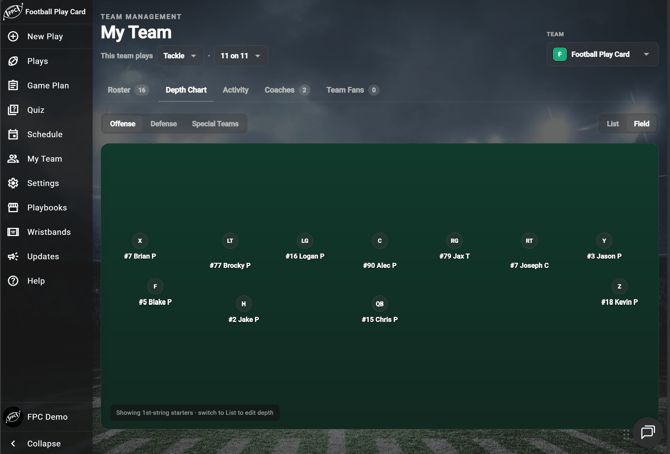
The Depth Chart tab in My Team is where you rank your players by position. It shows the same positions you set up in Player Options.
How do I assign a player to a position?
- Select My Team, then the Depth Chart tab.
- Choose Offense, Defense, or Special Teams.
- Make sure the List view is selected.
- Find the position row you want to fill.
- Assign a player to it.

Frequently Asked Questions
Can I rank a player who has not accepted their invite?
-
Yes. Players with a Pending invite, and players you added to the roster without inviting them, both appear in the assign menu. That means you can build your whole depth chart during install week and invite everyone afterward.
Where do the positions come from?
-
Positions and their order come from Settings > Player Options. The positions you see also depend on how your team plays, so a 5 on 5 flag team does not see positions that only exist in an 11 on 11 offense. See "How do I set my team format?"
What if a position I want is missing?
-
Check your team format first, since it controls which positions appear. If the position exists for your format, add or rename it in Settings > Player Options.
Can I see the depth chart laid out on a field?
-
Yes. Switch from List to Field. See "How do I view my depth chart on the field?"
Does a player keep their depth chart spot when they accept?
-
Yes. A player keeps their position as they move from Not Invited to Pending to Active.
How do I change a player's positions?
-
On the Roster tab, select the player's row. See "How do I edit a player's jersey number and positions?"