
Flip Strength mirrors a play to the other side of the field. Flip Options let you decide whether each player crosses over with the play or holds the side they already line up on. The offensive line and the defensive line each have one switch, so a line holds or flips together. This matters most on the line, where a left guard is a left guard whichever way the play goes.
How do I open Flip Options?
-
Open the play in the play editor.
-
Select Edit, then Flip Options.
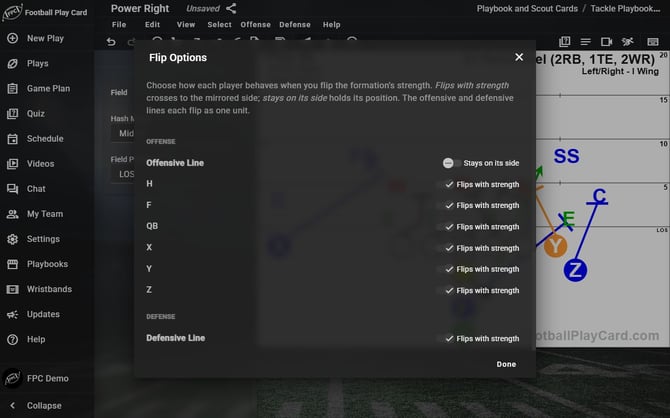
Offensive Line set to stay on its side. Every other player flips.
How do I flip just some of the players?
Flip Selected Players mirrors only the players you pick across the ball. Use it to flip one receiver, or one side of a formation, and leave the rest of the play alone. You need to be able to edit the play.
-
Open the play in the play editor.
-
Select the players you want to flip. On a computer, select the first player, then hold Ctrl or Shift and select each of the others, or drag a box around them starting from an empty spot on the field. On a phone or tablet, touch and hold an empty spot on the field, then drag a box around them.
-
Find the Toolbox. On a computer it is the panel to the left of the field. If you do not see it, select the Expand toolbox button. On a phone it slides up from the bottom of the screen when you select a player.
-
The Toolbox opens on its Assignments section. Select the section heading for what you selected: Player Options for one player, Multi-Player Options for several, or Selection if your selection also takes in a route, note or drawing.
-
Select Flip Selected Players.
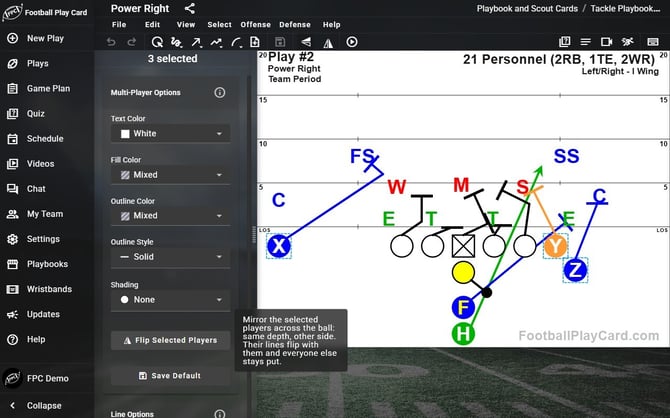
Flip Selected Players mirrors only the players you selected.
The players you selected move to the same depth on the other side of the ball. Their routes, shading and written assignments mirror with them, and everyone else stays where they are. Flip Selected Players does not use your Flip Options settings, so a lineman you select flips too.
Players mirror across the ball, not the middle of the field, so with the ball on a hash they land the same distance from the ball on its other side. A player who would land off the card stops at its edge. To put them back, select Undo or press Ctrl + Z.
Frequently Asked Questions
What are my choices for a player?
-
Flips with strength. The player mirrors across, which is what you want for a receiver running the same route to the other side.
-
Stays on its side. The player holds their side of the formation. This is what you want for the offensive and defensive lines.
What are the starting settings?
-
On a new play, the offensive line and the defensive line start on Stays on its side, and every other player starts on Flips with strength. To change the starting setting for a position, select Settings, then Player Options, and change that position's Flip Options. Plays you made earlier keep the settings they already have.
What happens to a player's assignment when the play flips?
-
A player set to Flips with strength crosses over and takes their route and written assignment with them. A player set to Stays on its side keeps their spot and takes over the job of the player opposite them, so after a flip your left guard runs what the right guard had. Left and right in a written assignment swap as well.
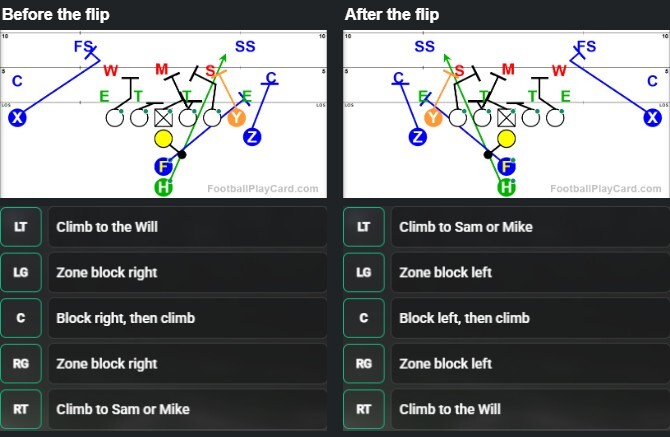
The line holds its side. Each lineman takes the job of the player opposite, with left and right swapped.
Why do I see "Double-check your flip settings"?
-
When you use Flip Strength or Flip Offense/Defense, this box appears if the players set to Stays on its side, not counting the lines, are not split evenly between the left and right of the formation, so the flip may not come out the way you expect. Select Go back to change the settings, or Flip anyway. To stop the warning, tick Don't show this warning again and select Flip anyway. To turn it back on, select Settings, then Field Options, and tick Warn me when flip settings are mixed.
Everything in this article works on the Football Play Card website on any device. If something is not in your mobile app yet, it is coming in an app update soon.