
Posting in team chat works the way any message app does. What is worth knowing is how to get one person's attention, how to point at an event, and where a message belongs.
How do I send a message?
- Select Chat in the side menu.
- Choose the Team channel, or Coaches if it is for your staff only.
- Type your message in the box at the bottom.
- Select Send.
How do I post a photo?
- On the website, select Chat in the side menu.
- Choose the Team channel, or Coaches for your staff only.
- Select Photo under the message box. On a phone, choose Take photo or Choose photo; on a computer, pick a file.
- A preview appears above the box. Select its X to take it off.
- Add a caption if you like; a photo needs no words.
- Select Send.
Photos can be JPEG, HEIC, PNG or WebP, up to 30 MB, one per message. If you switch channel or team after choosing a photo, the photo is dropped and your words stay. If the team has used its 5 GB of photo storage you will see Photo Storage Full, and a coach deletes older photos.
How do I get one person's attention?
- Type @ in the message box.
- Pick the person from the list of your team members.
- Finish your message and send it.
Players without an account, which includes every player on an Under 13 team, are not in the list, because they cannot open the chat. Mention their parent instead. Family & Friends are not in the list either, even when they are in the chat.
A mentioned member gets a notification on their phone, even if they have muted the team's announcements. The list is the same in both channels, so in the Coaches channel it still shows players and parents. They cannot read that channel, so mention only your staff there.
How do I link an event into a message?
- Select Link an event under the message box.
- Search for the event by name, or narrow the list with the buttons for the type of event (Game, Practice, Tournament or Meeting) and for Upcoming or Past.
- Pick it. The event appears above the box while you finish writing.
- Send your message.
In the posted message the event becomes a card reading Continue in the event thread, which opens that event's own thread.
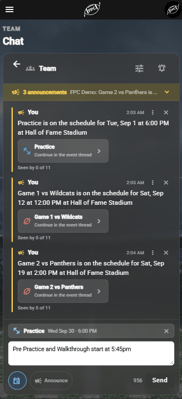
On a phone. The event you are linking sits above the box while you write.
Frequently Asked Questions
Can I delete a message?
- You can delete your own message, and a coach can delete anyone's, with the X beside it. A photo goes with its message; you cannot keep the caption and remove the photo.
Can I post in an event's thread?
- Coaches can post anything there. An event thread is where coaches tell the people invited to that event what they need to know, and everyone invited can read it. On the website, once the event starts, invited players, parents and family can post a photo or video with a caption. They cannot post text on its own.
- So if you are a player or a parent, write in the Team channel, and share a game photo or clip in the event's own thread on the website once the event starts. If you are a coach, use the event's own thread for anything to do with that practice or game, and it keeps the season conversation readable. See "How do I find an event's chat?"
- To share a photo or clip from a game, open that game from the Schedule. If the game repeats, the event card on a chat message opens the whole series instead, where only coaches can post.