
An assignment wristband prints each player's own assignment for every play, so they read their job instead of working it out from a diagram. It is a Play List Wristband with Name from set to Assignment.
How do I print an assignment wristband?
-
Select Plays in the side menu and open the folder that holds your plays.
-
Select the plays you want on the wristband.
-
Select Print at the right end of the toolbar. On a phone, tap the three dots at the bottom of the screen, then Print. You can print up to 100 plays at a time.
-
Choose Play List Wristband as the print type.
-
Set Name from to Assignment.
-
Under Print wristbands for, select each position you want a wristband for. Only the positions you pick get printed. A faded position has no assignment on these plays yet, so its wristband would print blank rows.
-
Select Print, then use your printer settings to print or choose Save as PDF.
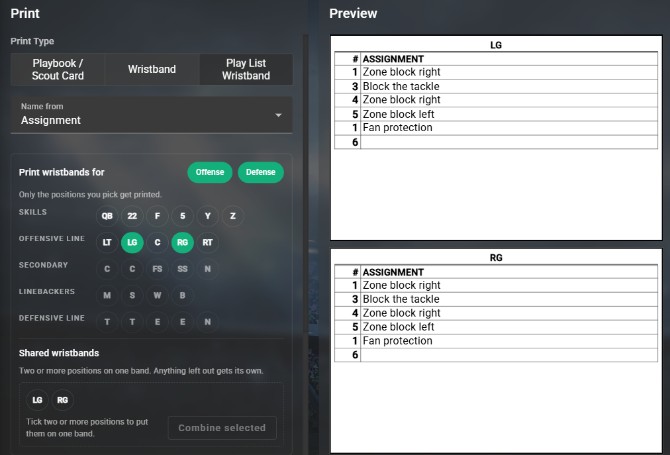
Each position you pick under Print wristbands for gets its own wristband.
Frequently Asked Questions
Can I print one wristband for a whole unit?
-
Yes. Under Shared wristbands, select two or more positions, then Combine selected. The band is named after them, such as LT + LG. Any position you leave out gets its own wristband. To split a shared band again, select its delete icon.
Why do I see a play side and a back side?
-
Because a player's job often depends on which way the play goes. On a shared wristband, tick Display Play Side / Back Side to group each row as Play Side: … | Back Side: …. Which side each player is on comes from their PS or BS setting in the Assignments panel.
Does it remember my choices next time?
-
When the plays have more than one unit, buttons beside Print wristbands for show or hide each unit's positions. The units you hide are remembered in this browser, so the picker opens the same way next time. There is no separate offense or defense filter.
Everything in this article works on the Football Play Card website on any device. If something is not in your mobile app yet, it is coming in an app update soon.