
Coaches who can edit the team decide which groups on your roster reach the team chat. Some coaches want parents in the conversation, some do not, and the setting is yours to change at any point in the season. A coach with view-only access can see the list but not change it.
Everyone you add can read the chat and post in it, including the messages from before you added them. There is no read-only option.
Team chat is included with State Champion and above. On a lower plan, coaches still see Chat, and opening it offers an upgrade. Players and followers do not see Chat at all.
How do I change it?
-
Select Chat in the side menu. On a phone, tap Team under Channels. If you are on the Chat tab in My Team, select Open full page first.
-
At the top of the Team channel, select the sliders icon, Chat settings. It sits to the left of the bell, and does not show in the Coaches channel.
-
Switch Players, Parents & Guardians or Family & Friends on or off.
Turning a group off asks you to confirm, for example Remove Players?, and says that group will no longer be able to open the team chat. Messages they already posted stay. Select Remove. Turning a group on needs no confirmation. Each change saves straight away, so select Done when you are finished.
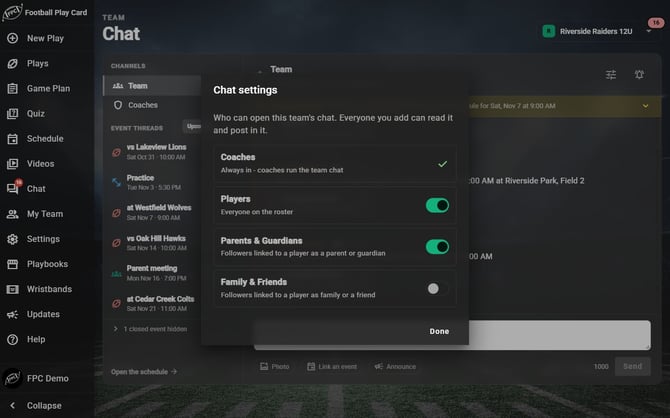
Coaches are always in. Switch each other group on or off.
Frequently Asked Questions
Who is in the team chat to start with?
| Group | In the chat by default? |
|---|---|
| Coaches | Yes, always |
| Players | Yes |
| Parents & Guardians | Yes |
| Family & Friends | No, you add them |
| Fan | Never |
Why can I not switch off Coaches?
-
Because the only place to change this setting is inside the chat. If you could remove your own group you would lock yourself out with no way back to the setting that did it.
Why is there no row for Fans?
-
A Fan follows your schedule and nothing else. There is no setting that puts a Fan in the team chat, deliberately, so nobody can turn one on by accident. If you want somebody in the conversation, invite them as a Parent/Guardian, or as a Family & Friend and switch Family & Friends on here. To move an existing Fan, use Change Follower Type on their row in the Followers tab. See "How do I invite a follower?"
Why are some players not in the chat?
-
A player without an account cannot sign in, so they are never in the team chat, whatever this setting says. That includes every player on an Under 13 team. Their Parent/Guardian is in the chat for them when Parents & Guardians is switched on here.
Does this change the event chats?
-
No. An event's own thread, under Event threads in Chat and on the event's Discussion tab, goes by who was invited to that event, so a game you only invited your players and coaches to stays between them, whatever your team chat groups are set to.
-
Posting is different again, and it is not a setting. On every team, only coaches post messages in an event thread. Everyone else invited can read it, and on the website, once the event starts, can add photos and videos. Their other replies go in the team chat, if their group is switched on there.
Everything in this article works on the Football Play Card website on any device. If something is not in your mobile app yet, it is coming in an app update soon.